

WhatsApp Catalogue: How Small Businesses Can Showcase Products and Take Orders Inside Chat

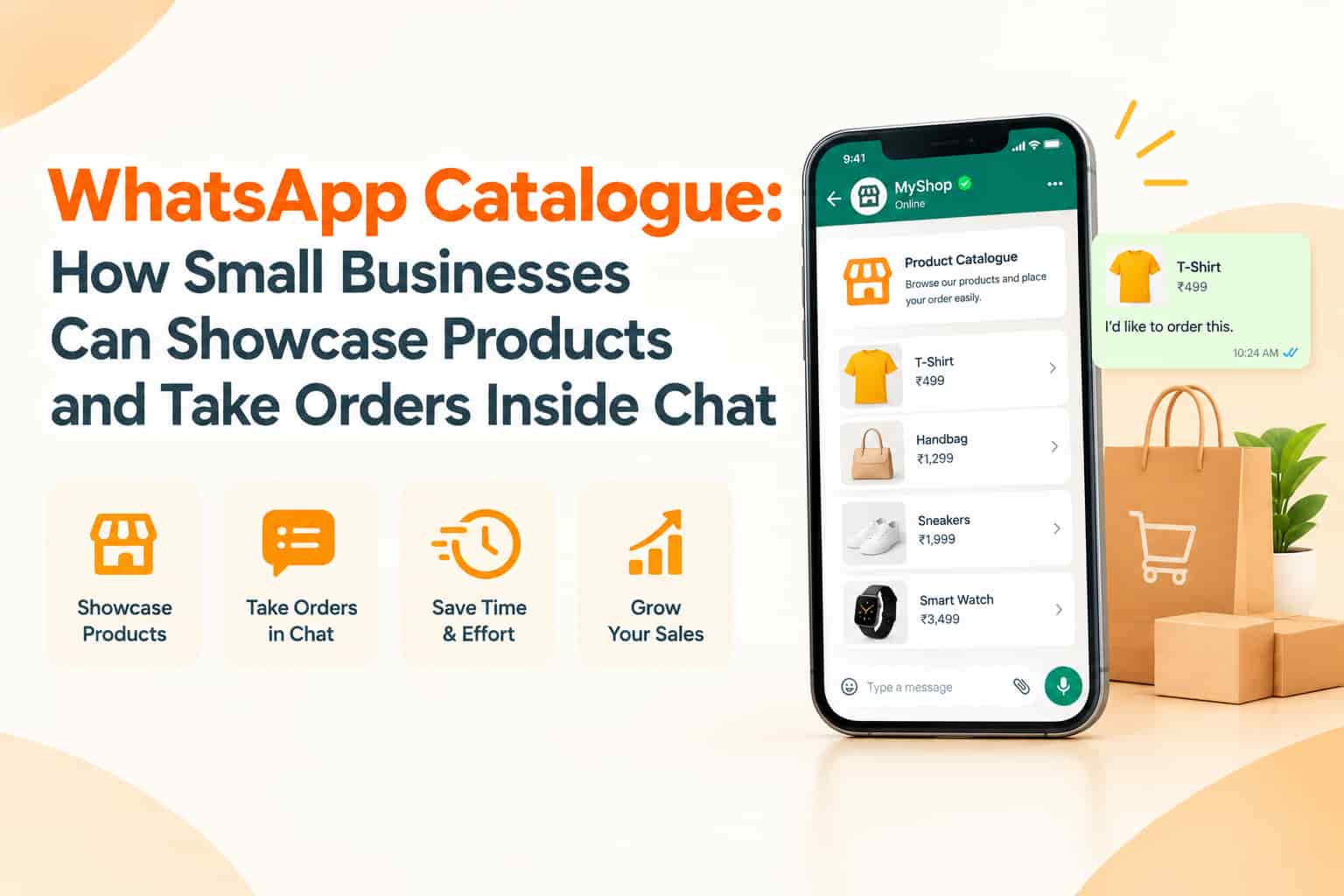
Many small businesses in India already sell through WhatsApp. A customer asks, "Do you have this in blue?", the owner sends photos, the customer asks the price, the owner types it, and the conversation drags on. Each product enquiry means a pile of screenshots and repeated messages. WhatsApp offers a built-in answer: a catalogue, where products are listed with photos, prices and descriptions inside your business profile. Customers browse without leaving the app, add items to a cart and send you an order message. This guide explains how the WhatsApp catalogue works and how to use it to sell more.
What the catalogue is
A catalogue in WhatsApp Business is a digital showcase of your products or services, attached to your business profile. Each item can have images, a name, price, description, a link and a product code. Customers open the catalogue from your profile or from a link you share in a chat. Items can be grouped into collections, such as "New arrivals" or "Under 999", so browsing feels organised. The feature is available in the WhatsApp Business app and, with a connected catalogue, through the Business Platform. Limits on the number of items and fields, and availability of features in different countries, can change, so check the app for current rules.
Why it helps sales
A catalogue saves time and reduces friction. Customers see all your products with prices without asking. You avoid repeating the same photos and details. Items can be shared directly into chats, so when someone asks about a product, you send a single tap-ready card. Customers can add products to a cart and send a structured order message that lists items and quantities, which reduces mistakes. For service businesses, a catalogue can list packages, treatments or classes with prices and descriptions.
Set it up step by step
Step 1: Use the right app. The catalogue feature is available in WhatsApp Business, not the ordinary WhatsApp app. Make sure your profile is complete, with business name, category, description, address, hours and website.
Step 2: Open the catalogue section. In the app's business tools, choose the catalogue option and start adding items.
Step 3: Add products. Upload clear photos, write a descriptive name, enter the price, add a short description and, if useful, a link to the product page and a product code. Add several images where the app allows.
Step 4: Create collections. Group related items, for example by category, occasion or price band. Collections help customers find things quickly.
Step 5: Control availability. Mark items as hidden or out of stock when needed so customers do not order unavailable products.
Step 6: Share and test. Send the catalogue link to a friend and test the browsing and ordering experience on different phones.
Write product listings that sell
Use bright, well-lit photos on a clean background, showing the product from useful angles and in use where possible. Give each item a clear name that includes the product type and key attribute. Enter accurate prices, including taxes where relevant. In the description, mention size, material, colour options, care instructions, stock and delivery information in short, scannable lines. For services, describe what is included, duration and who it suits. Keep information consistent with your website and other sales channels.
Use collections to guide browsing
Think like a shopper. Collections such as "Best sellers", "Festive gifts", "New this week" or "Budget picks" work better than a long, unorganised list. Update them for seasons and promotions. Keep the number of collections manageable, and put the most popular ones first.
Share the catalogue everywhere
A catalogue is only useful if people find it. Add the catalogue link to your Instagram bio, Facebook page, website, email signature, invoices and printed material. Use a QR code at the counter that opens your WhatsApp profile and catalogue. In chats, share individual product cards when answering questions. Use click-to-WhatsApp ads that open a conversation with a product, so interest becomes a chat that is ready for ordering.
Handle orders smoothly
When a customer sends a cart, you receive a message listing the items. Confirm availability, add delivery charges, share payment details or a payment link, and confirm the order clearly. For larger volumes, connect the catalogue to a platform that can process payments and track orders. Keep a simple order record, such as a spreadsheet or CRM, so you do not lose track. Send updates on dispatch and delivery to reduce questions.
Business app or Business Platform?
The WhatsApp Business app suits small businesses with one or a few people managing chats on phones. As volumes grow, many businesses move to the WhatsApp Business Platform through a provider, where catalogues connect to Meta's commerce tools, product messages can be sent in conversations, multiple agents can work from a shared inbox and automation handles routine queries. If you plan to scale, discuss migration early, since moving numbers between systems needs planning.
Combine with other tools
Use quick replies for common answers, such as delivery time or return policy. Use labels to tag customers by stage: new enquiry, awaiting payment, paid, shipped. Use greeting and away messages to welcome customers and set expectations outside business hours. Keep a catalogue in sync with your inventory, since out-of-date prices and stock create disappointment.
Compliance and trust
List products and prices honestly. Follow advertising and consumer protection rules, and clearly state return and refund policies. Respect privacy, and only message customers who contacted you or opted in. Do not send unsolicited mass promotions. Avoid prohibited items under WhatsApp's commerce policy, which restricts categories such as certain regulated goods.
Measure performance
Look at catalogue views, product shares, cart sends and order conversion through the app's insights or your own records. Note which products attract the most questions or carts, and adjust photos, pricing or descriptions. Ask customers how they found you and what information they wanted. Remove items that never sell, and promote those that do.
Common mistakes
Common errors include dark or blurry photos, missing prices, outdated stock, too many uncategorised products, no collections, forgetting to share the link, slow replies after carts arrive and no order tracking.
Frequently asked questions
Is the catalogue free?
The feature is free in the WhatsApp Business app. Costs arise with the Business Platform and paid ads.
Can customers pay inside WhatsApp?
Payment features depend on country and rollout. Many Indian businesses share payment links or UPI details in the chat.
How many products can I list?
Limits apply and can change, so check the current number in your app.
Sell more from every chat
OM Enterprises helps businesses set up WhatsApp catalogues, click-to-chat ads and Business API ordering flows. Talk to our WhatsApp commerce team.