

Transactional SMS Not Delivered in India: How to Diagnose and Fix DLT Template Mismatch

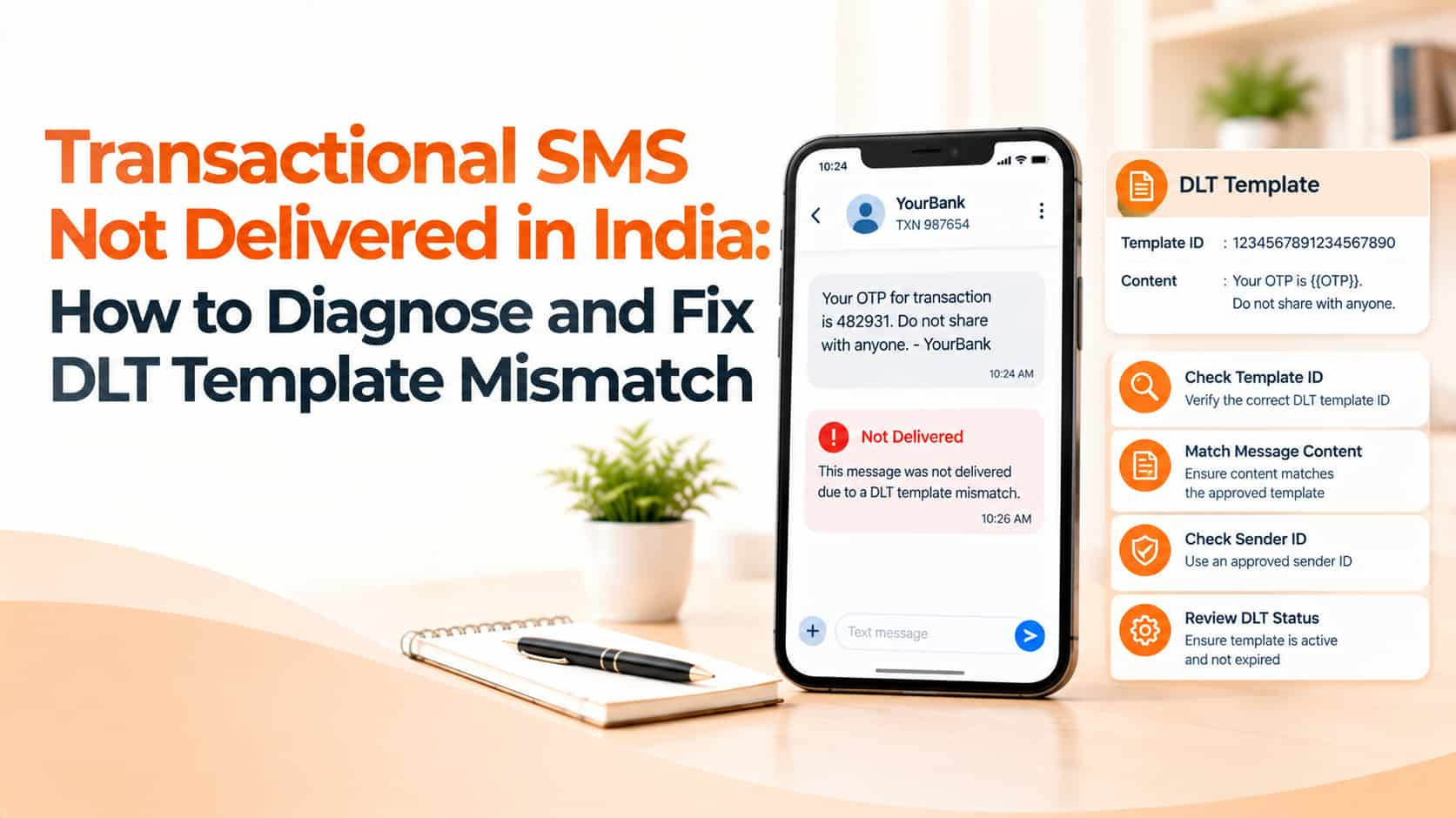
It is a frustrating situation. The template was approved, the sender ID is registered, your account has balance, and yet the delivery report says failed. The message is a one-time password that customers are waiting for, or a payment confirmation that must reach them within seconds. When transactional SMS is not delivered in India and the failure reason points to a template mismatch, the cause is almost always a small difference between what you registered and what you actually sent.
How the matching works
Under India's telecom regulations, operators check each commercial SMS against details registered on the DLT platform. The check typically compares the sender ID, the registered business entity, the template ID and the message text. The text must follow the approved template's fixed words exactly, with variable parts only in the places defined for them. If the system cannot match the message to an approved template, it is blocked and reported as failed or rejected. The platform does not try to guess your intention. Even a tiny punctuation difference can be enough.
The most common causes
Changed wording. Someone edited a word, added a greeting or reordered a sentence in the application code, while the registered template remained the same.
Extra or missing spaces and punctuation. A full stop, comma, line break or double space that does not appear in the template can cause mismatch.
Variable errors. Variables in a template are defined with specific placeholders and often have length or format limits. If the value you insert is longer than allowed, contains unexpected characters or is empty, the message can fail. A name with special characters or an OTP with an unexpected format are examples.
Wrong template ID. The message text may be correct, but the template ID sent along with it belongs to a different template, or none was sent at all, when your route requires it.
Header mismatch. The template is mapped to a particular sender ID, and the message is sent using another.
Wrong category. A promotional message sent through a transactional route, or a service message using a template registered in a different category, will be blocked.
Principal entity mismatch. Templates are linked to your registered entity. Using another entity's credentials, or mixing accounts, causes failures.
Unapproved links. URLs in content may need to be registered or whitelisted, and shortened or changing links can fail checks.
A step-by-step troubleshooting routine
Step 1: Pick sample failures. Choose a few failed message IDs from your delivery report with timestamps and recipient operators. Note the exact error text or code.
Step 2: Compare text character by character. Copy the message as actually sent and place it beside the approved template. Check capitalisation, punctuation, spaces and line breaks. Look at how variables were filled in.
Step 3: Verify identifiers. Confirm that the template ID, header and entity ID in your API request match the approved registration. Check that the template status is approved and active.
Step 4: Test with a controlled message. Send a message to your own test numbers on different operators, using a known good template and typical values. If it delivers, the issue lies in the failing content or data. If it fails, the issue may be in configuration.
Step 5: Inspect variable values. Check whether names, order numbers, amounts or links exceed the permitted length or include odd characters. Trim and sanitise values before sending.
Step 6: Escalate with evidence. If everything matches and failures persist, ask your provider to check operator-level logs, giving message IDs, times and template details.
Fixes that usually work
Store approved templates in one central place and generate messages from them, rather than letting developers retype text. Use the same character encoding across your systems and avoid copying text from word processors that insert curly quotes or hidden characters. Validate variable values for length and format before sending. If the wording must change, register a new template and wait for approval before deploying. Keep a log of template IDs and versions so teams can trace which message maps to which registration.
Protect OTP and critical messages
Because OTPs are time-sensitive, failure directly affects logins, payments and sign-ups. Keep transactional traffic on its own route and header, separate from marketing campaigns. Monitor OTP delivery rate and delivery time continuously and set alerts for sudden drops. Provide a fallback such as voice OTP or an in-app code request button, so customers are not stuck while you diagnose the problem. Never include unrelated promotional content in transactional messages, since that can violate rules and lead to blocking.
Prevent problems with a release checklist
Before launching a new message type, confirm template approval, header mapping, category, variable formats, link permissions and test delivery on major operators. Review any code change that touches message content. After release, check delivery reports within the first hour. Many failures are found and fixed quickly when someone is watching.
Frequently asked questions
Can a single comma cause a mismatch?
Yes. Matching is strict, so even small differences from the approved text can cause blocking.
Do I need a new template for every change?
If the fixed wording changes, you generally need to register and get approval for a new template.
Why do some messages deliver and others fail with the same template?
Variable values may differ. Check length, characters and formatting in the failing messages.
Keep critical messages flowing
OM Enterprises helps businesses fix template mismatches, manage DLT registrations and monitor transactional SMS delivery. Talk to our SMS support team.